Phone and TV, in sync.

4789 TV turns an Android TV, Google TV, Fire TV, or NVIDIA Shield into a first-party destination. Open it, let your iPhone find it, and keep the room under control.

Public compatibility build · v0.1.42
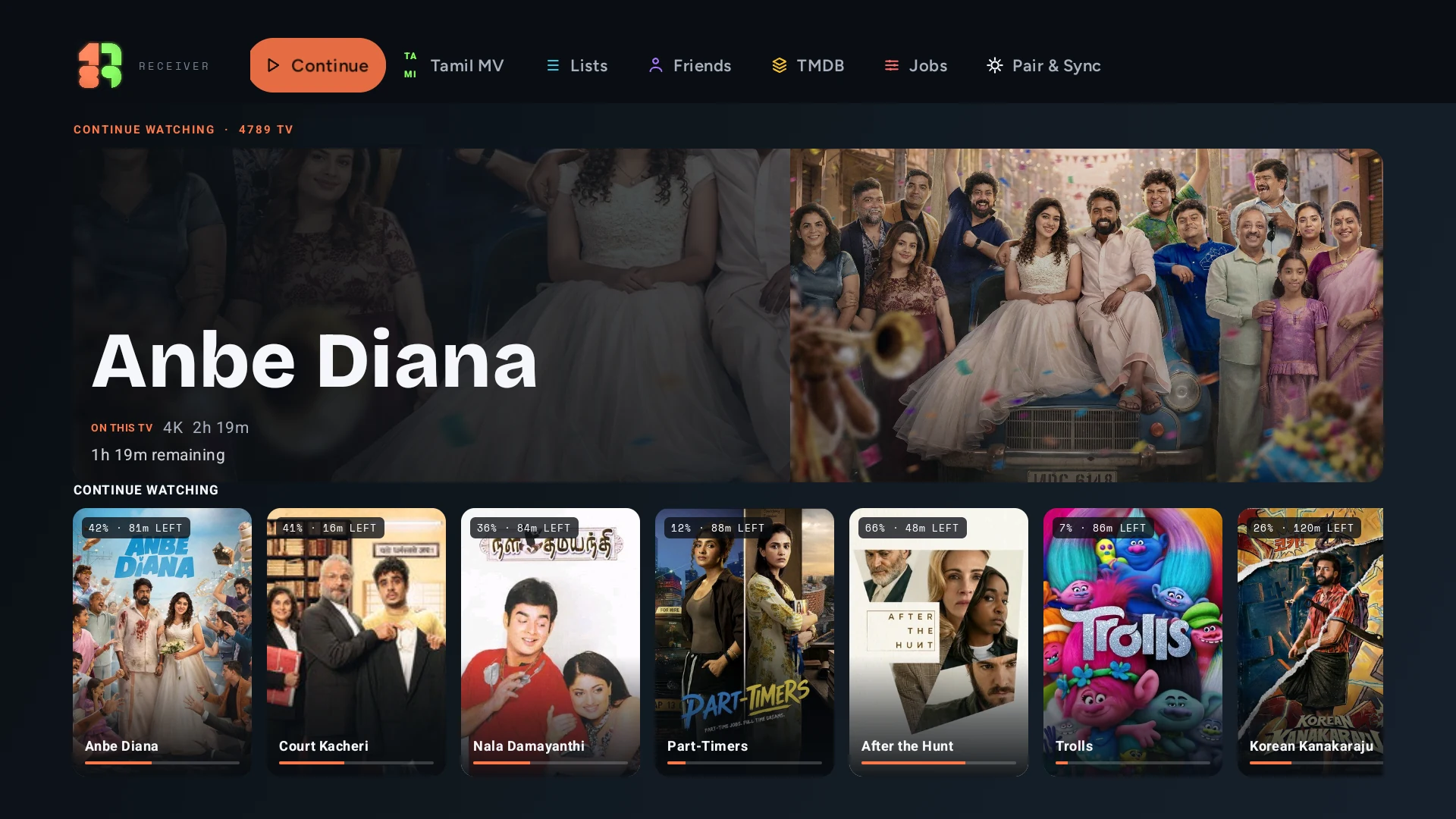
The 4789 TV lobby on a television, showing a Continue Watching hero and a rail of poster cards

Phone in your palm. Cinema on your wall.

Searching, typing, and filtering with a TV remote is an exercise in frustration. Your iPhone has a 120Hz ProMotion touch surface. 4789 pairs the speed of touch browsing with the raw power of your home theater: flick any title to the TV in one tap, experience uncompressed Dolby Vision and Dolby Atmos passthrough, and swipe back to your phone whenever you move rooms.

Passthrough Engine If your TV supports it, we pass it through.
4KUHD VISION 10+ ATMOS TrueHD dts-HDMA
Instant 1-Tap Handoff 24p Auto Frame Rate Lossless eARC Multi-Room

Why Sideload 4789 TV?

Generic casting protocols (Chromecast, AirPlay) force downmixing to stereo, drop dynamic Dolby Vision metadata, or transcode high-bitrate files into muddy 8-bit SDR. 4789 TV is a native hardware engine that passes pristine streams straight to your TV's silicon.
The Bidirectional Link

Pause or seek with your physical TV remote, and your iPhone catches up in real time. Scrub on your phone, and the television responds in milliseconds. Pull playback back to your phone with a swipe without missing a single frame.

Multi-Room Management

Have multiple TVs in your home? 4789 discovers every active screen on your network. Switch from the living room to the bedroom or basement in one tap, or beam your accounts and source manifests to new screens seamlessly.

Set up your TV.

Choose your device below. You will download an APK, allow its installer, then connect from iPhone. 4789 TV is a sideloaded compatibility build, outside the Play Store and Amazon Appstore.

Check the operating system

The APK requires Android 9 / API 28 or later on Android TV, Google TV, or NVIDIA Shield, or Android-based Fire OS 7 or later. Check the OS version in your device’s Settings → About screen. Meeting this floor allows installation; it does not certify every device or playback format.

Check the device family

This APK does not run on Apple TV, Roku, Samsung Tizen, LG webOS, or Fire TV devices running Vega OS. Amazon distributes separate app packages for Vega OS. Use an Android-based receiver for this download. Codec, HDR, surround audio, and 4K performance depend on your box, media, and connected audio equipment.

Android TV, Google TV, and Shield.

Use the main device profile and a remote. The permission menu’s location varies by manufacturer and software version.

  1. 01

    Get a downloader

    On your TV, open the app store or the Apps search and install Downloader by AFTVnews. You can also use an installed browser that supports APK downloads. Open the app after installation.

  2. 02

    Download the APK

    In Downloader’s URL field, enter the code 5873252 and choose Go. If you would rather type an address, 4789library.com/tv is the same download. Either route always points at the current published build and starts the APK download straight away, so there is no page to browse. The address also works in a TV browser. Downloading from the GitHub release page instead? Expand Assets and choose 4789tv.apk, not a source-code ZIP. Wait for the download to finish, then open the file.

  3. 03

    Allow this installer

    If Android blocks installation, choose Settings in that prompt. In Install unknown apps, allow the app that opened the file—Downloader, your browser, or your file manager. Return with Back and open the APK again. This is a permission for that installation source, not a permission you enable for 4789 TV.

  4. 04

    Install and open

    Choose Install, wait for completion, then choose Open. Later, launch 4789 TV from your apps list; if its tile is missing, open Settings → Apps and select 4789 TV. Leave the receiver screen visible, then follow Connect iPhone. You can turn off the installer’s unknown-app permission after installation and enable it again for an update.

Finding the permission on your TV

Use the installation prompt first. Opening the downloaded APK and choosing Settings takes you to the permission screen for the correct app, including on Shield. Allow that source, press Back, and retry the same file.

Sony Google TV example. Sony documents Settings → Privacy → Security & Restrictions → Unknown sources → Install unknown apps. Select your downloader there. See the manufacturer’s instructions; other TVs arrange these menus differently.

If the option is unavailable. Confirm you are using the main profile rather than a restricted or child profile. Follow your manufacturer’s guidance for your exact model and software. If device policy blocks installation, use installation support with the model and error text.

Fire TV, with Fire OS.

These steps are for Android-based Fire OS 7 or later. Check your model’s OS first; a Fire TV name alone does not establish APK compatibility.

  1. 01

    Install Downloader

    From Fire TV Home, use Find or Search to look for Downloader by AFTVnews in the Amazon Appstore. Select Get or Download, then open it once. Installing a downloader first lets it appear in the per-app installation permission list.

  2. 02

    Show Developer options

    Open Settings → My Fire TV → Developer options. If Developer options is missing, open My Fire TV → About, highlight your device name, and press the remote’s Select button seven times. Press Back to find Developer options. Amazon documents this menu-unlock sequence.

  3. 03

    Allow Downloader

    In Developer options, open Install unknown apps and turn Downloader on. Some Fire OS versions show Apps from Unknown Sources instead; enable that setting for installation. See Amazon’s installation-permission guidance. ADB debugging is not needed for this Downloader route.

  4. 04

    Download and install

    Return to Downloader and enter the code 5873252, then choose Go. The address 4789library.com/tv is the same download if you prefer typing it. Either route points at the current published build, so the 4789tv.apk download starts immediately. Open the completed download, choose Install, then Open. A browser that can download and open APKs works too; grant permission to that browser or the file manager opening its download.

  5. 05

    Keep the receiver ready

    Leave 4789 TV open and follow Connect iPhone. To reopen it later, use Your Apps & Channels, or Settings → Applications → Manage Installed Applications → 4789 TV → Launch application. After installation, you can turn the unknown-source permission off until you next update.

Verified compatibility release · v0.1.42

Get the current 4789 TV release.

v0.1.42 is the current public compatibility build. Newer receiver work is not part of this download.

Downloader code 5873252

Open Downloader on the television and enter this code. Or type 4789library.com/tv — the same download.

Size
83,710,915 bytes
SHA-256
4fbe30d1789d423dd66d455a9a8015e8be2e5f627988fd65d32e6264032f5847

Connect your iPhone.

Install 4789 on iPhone using the iPhone installation guide. The receiver and phone communicate over your local network.

  1. 01

    Join the same network

    Connect iPhone and TV to the same home router. The TV may use Ethernet while the phone uses Wi-Fi, provided both are on the same local network. Keep 4789 TV open on its receiver screen.

  2. 02

    Allow Local Network

    Open 4789 on iPhone and allow access when asked to find devices on your local network. If you previously declined, go to Settings → Privacy & Security → Local Network → 4789 and enable it, then return to the app. See Apple’s Local Network instructions.

  3. 03

    Choose the receiver

    When 4789 offers the ready TV, choose Connect. Select a title and a playable source you have access to, then use the TV destination. Try pause and resume from the phone to confirm the connection. Installing the receiver does not supply films, channels, or a media service.

Simulated receiver · deterministic demo
The TV does not appear

Check Local Network permission, keep the TV receiver open, and confirm both devices are on the same home network. Guest Wi-Fi, hotel Wi-Fi, and router settings called client isolation or AP isolation can prevent devices from talking even when the Wi-Fi name looks right. Use your normal home network; on a network you administer, allow local device communication. If a VPN blocks local access, enable its local-network option or disconnect it while testing.

Connect with the TV’s address

Read the local address shown by 4789 TV. Use the manual receiver setup in the iPhone app and enter that TV address, with the receiver’s displayed port when requested. The default HTTP port is 8791. Use the TV’s address, not the router or iPhone address. If a saved address stopped working after a router restart, read the current one from the TV and update it. Manual setup helps when discovery is blocked; it cannot bypass guest-network isolation.

The APK will not install

Confirm Android 9 / API 28 or later, or Fire OS 7 or later, and rule out Vega OS. Download the APK again from the official release, check available storage, and allow the app that actually opens the file. If Android reports a package or signature conflict with an existing 4789 TV installation, record the full error and ask support before uninstalling. Uninstalling can remove receiver settings; a build signed with a different key cannot update the existing installation in place.

The receiver connects, but playback fails

First try a source you know is playable on that device. The TV must be able to reach the media URL itself; a connection to iPhone does not guarantee source access or codec support. For a local file served by iPhone, keep the phone reachable on the network. Report the TV model, OS, app version, and visible error through TV support. Keep tokens, media URLs, local addresses, and private library details out of public reports.

Update without losing setup

Check the official release notes before installing a newer APK. Use a compatible update over the existing app and preserve your current setup. This page stays pinned to the verified public v0.1.42 release until a replacement passes its release checks; a newer local test build is not this public download.

A receiver built for real playback.

The television plays the media. The iPhone chooses, controls, and stays in sync.

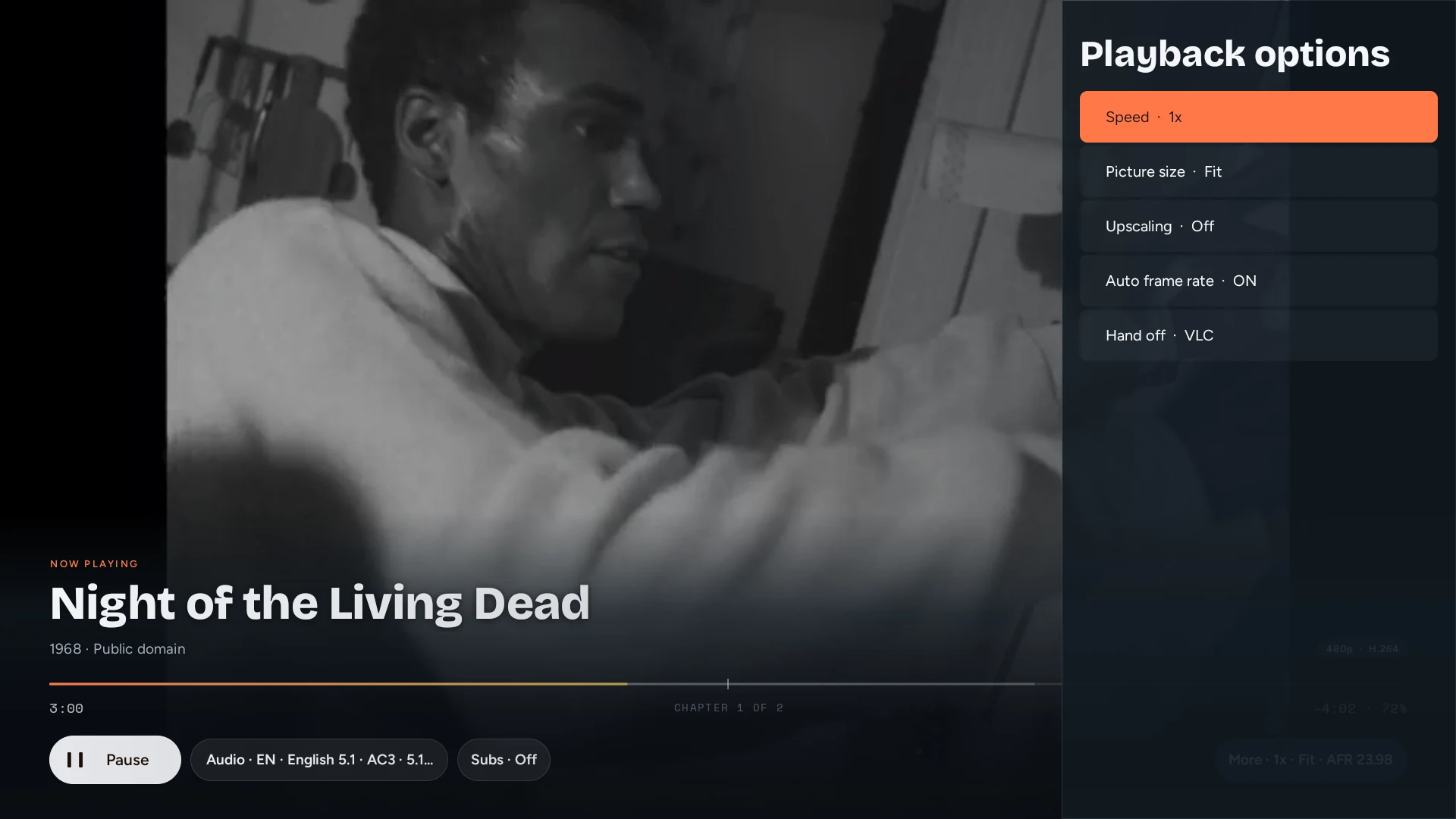
The 4789 TV playback options rail showing speed, picture size, upscaling, auto frame rate, and hand off
Receiver capture playing Night of the Living Dead (1968), public domain. Auto frame rate matched the film at 23.98.

Two remotes, one state

Pause, resume, seek, or stop from the iPhone or the TV remote. Each side receives the receiver's current playhead and playback state.

CC

Tracks without starting over

Choose audio and subtitle tracks from the phone. Add an external subtitle, adjust its timing, or apply first-party appearance controls.

A/V

Audio that respects the route

Profiles cover TV speakers, ARC, eARC, AVR, and multichannel PCM. Compatible routes can preserve direct audio; unsupported paths decode instead.

Failures that explain themselves

Connecting, opening, buffering, decoder trouble, and source failure remain distinct. Recovery is bounded, and the phone receives the receiver's reason when it cannot continue.

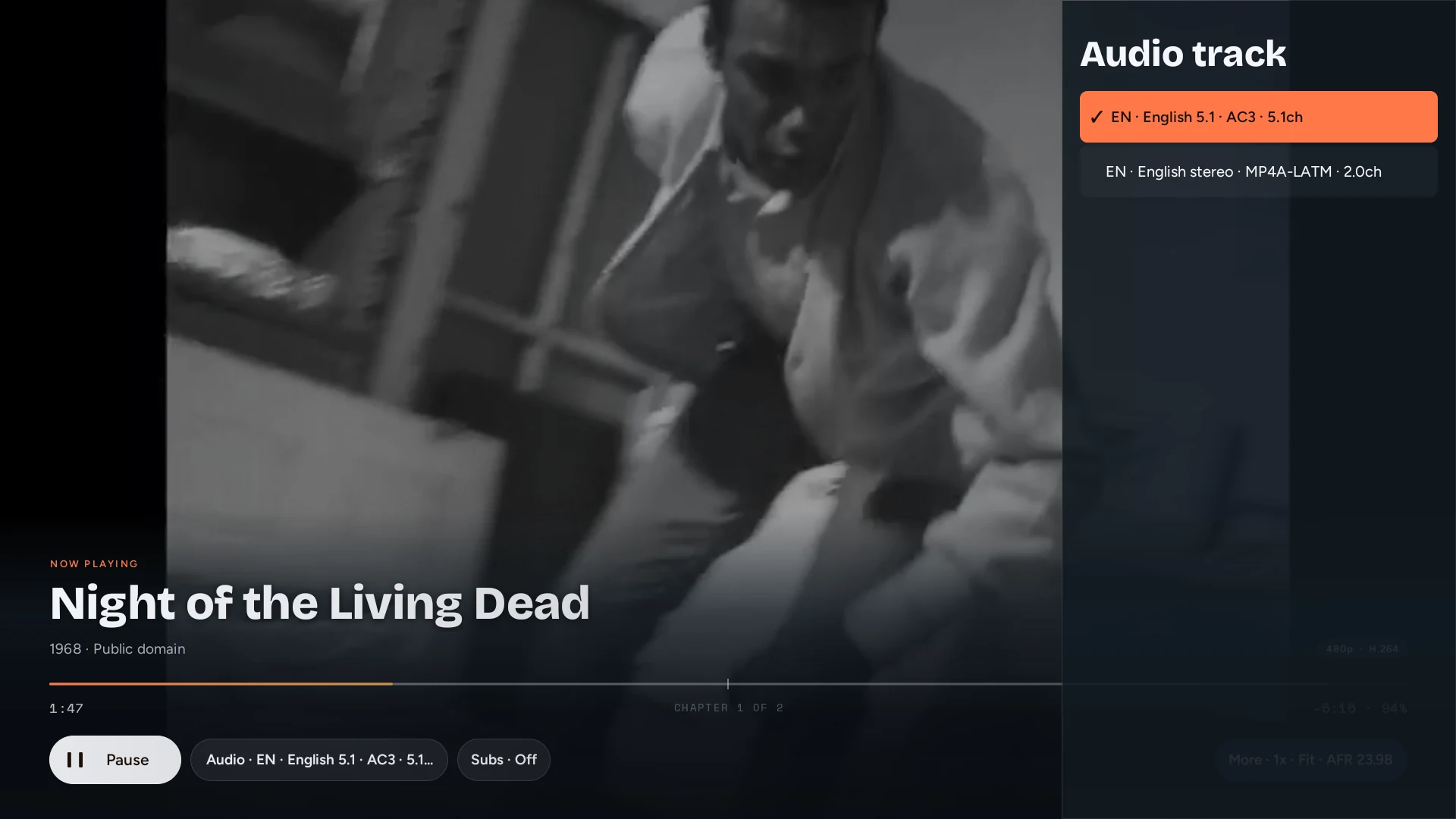
The 4789 TV audio track picker listing an English 5.1 AC3 track and an English stereo track
Audio tracks, read from the file the receiver is playing.
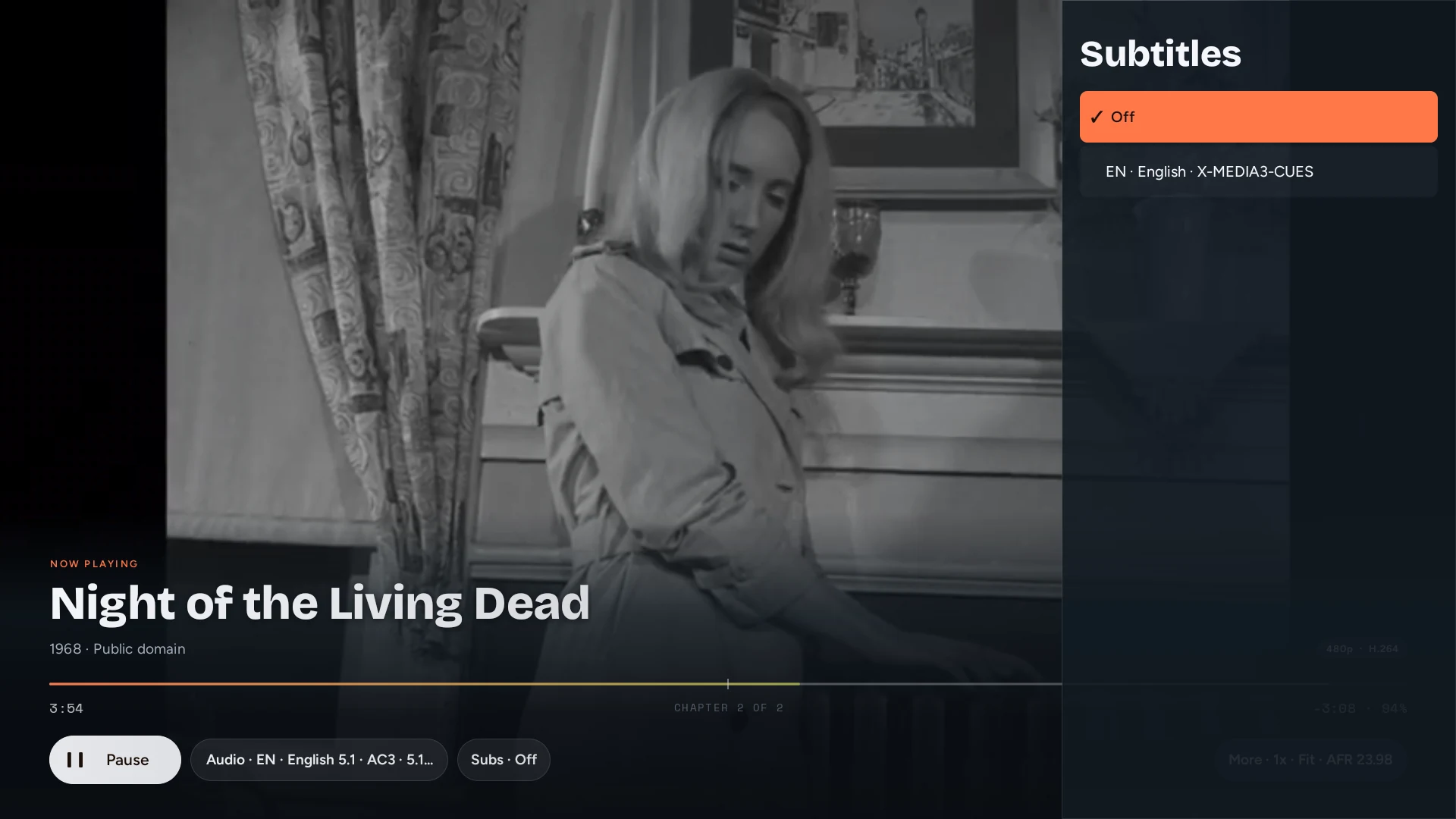
The 4789 TV subtitle picker listing Off and an English subtitle track
Subtitle tracks, switchable without restarting playback.

The TV keeps playing. The phone stays useful.

For receiver-fetched streams, playback continues when 4789 leaves the foreground. Return to the app and the remote reconciles with the receiver. Local files still need the phone and TV connected through Wi-Fi or the phone's hotspot while the phone serves the bytes.

Open the receiver. Choose the room.

Install the public compatibility build, leave 4789 TV visible, and continue from your iPhone.